
How to manage local AI models
Manzoni lets you run open source AI models locally.
In this guide, we cover how to install, load, and delete them so you are all set to get AI writing assistance whenever and wherever you need across your apps and inside the Manzoni editor.
-
Open Manzoni editor
-
Go to Settings ⚙️
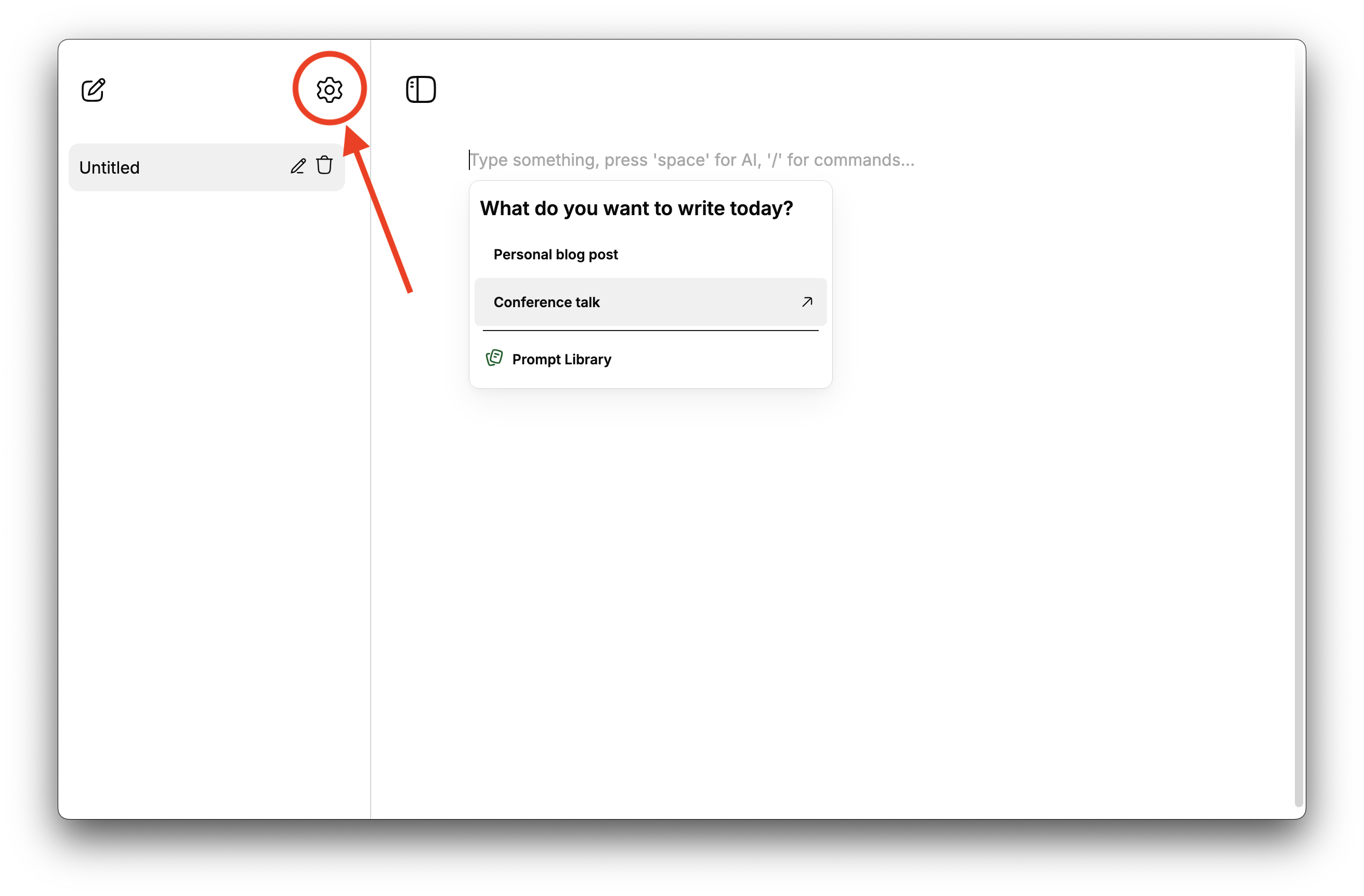
-
Click on 'Manage models' button in the AI Models section.
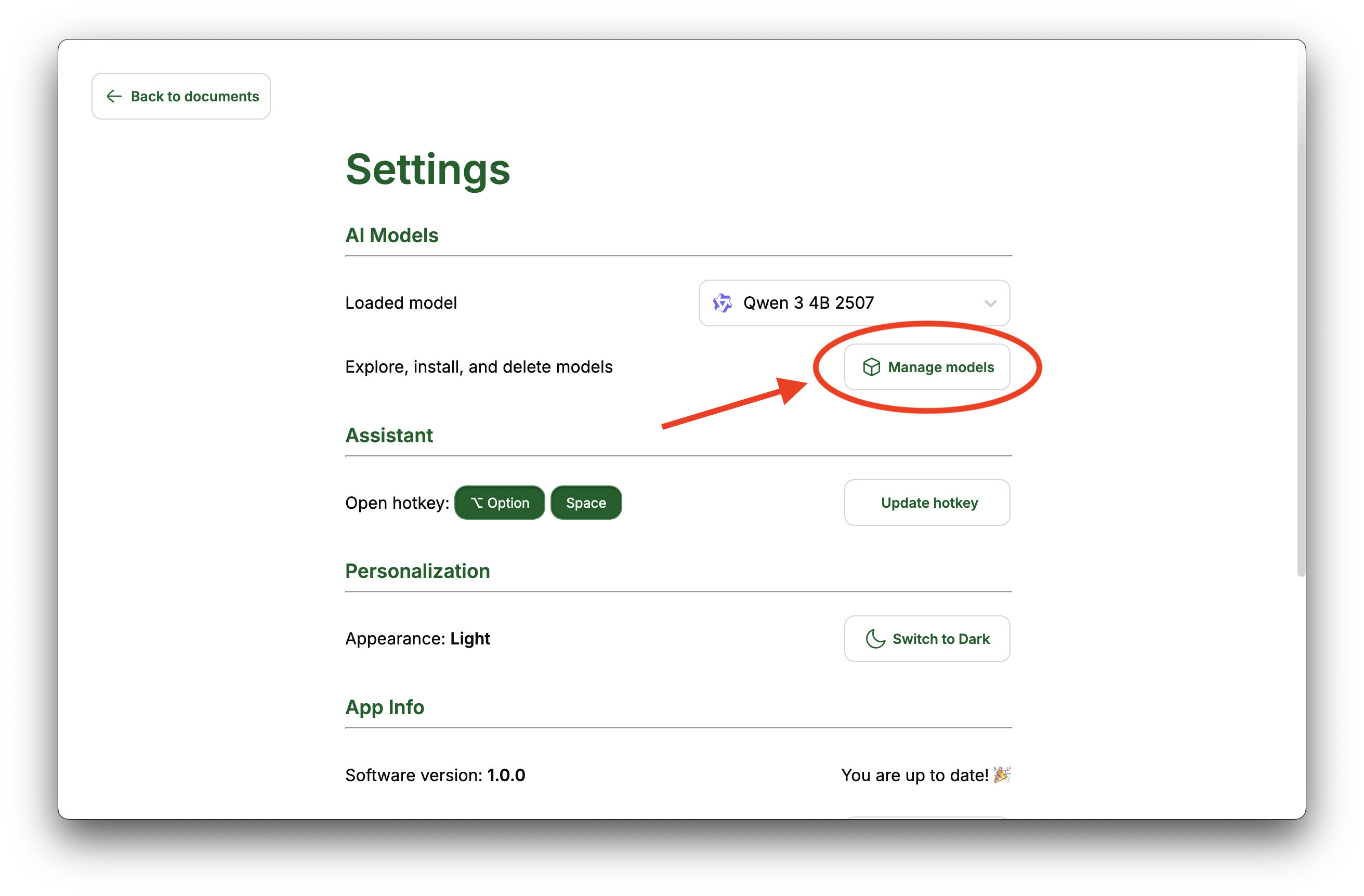
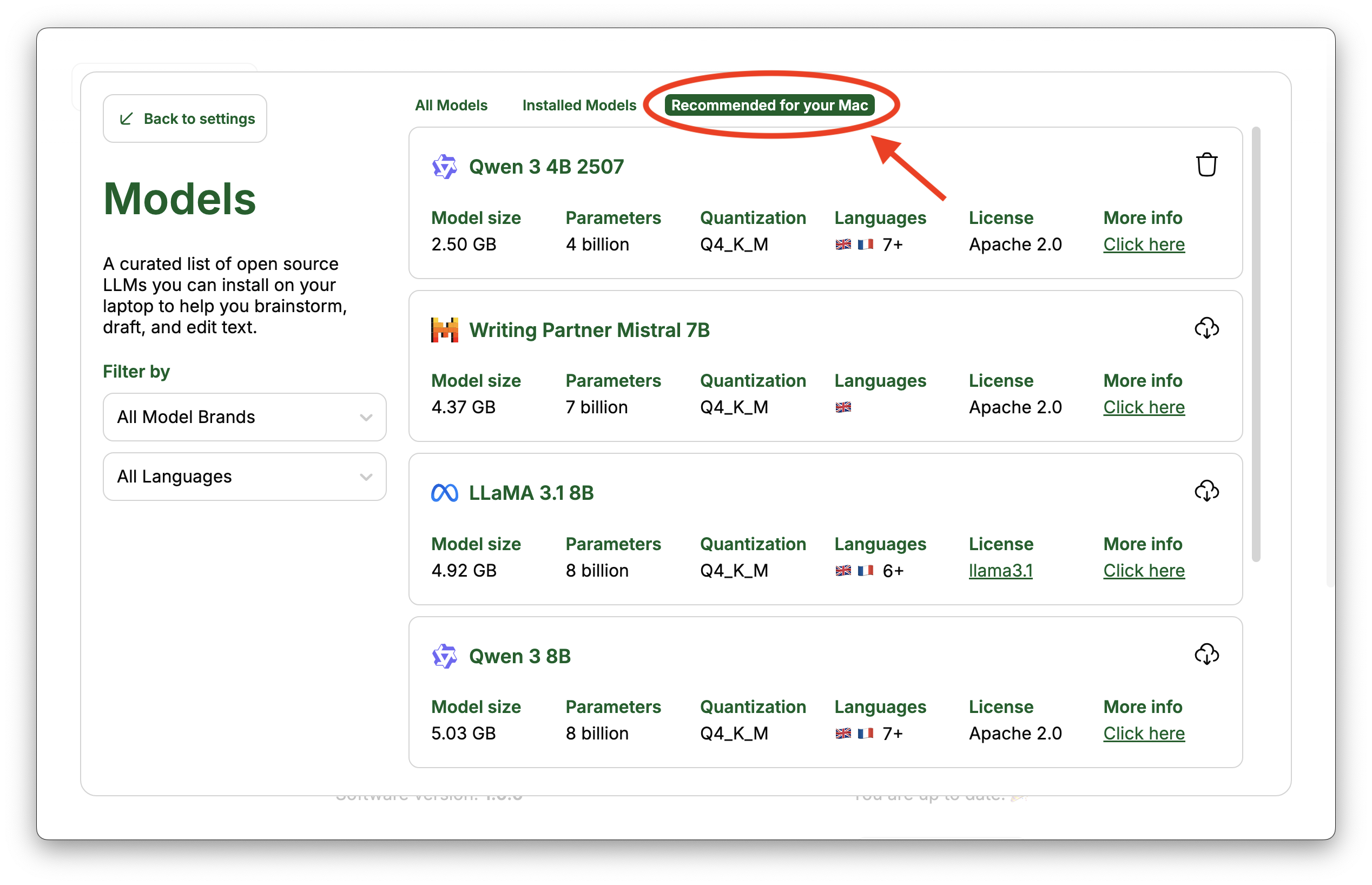
In the modal that appears, you can see all the available AI models you can install on your laptop.
Which model should you pick?
First of all, each model comes with a specific number of parameters. The more parameters, the smarter its answers, but also the more resources it needs to run.
So the models you can run depend on the capabilities of your laptop in the first place.
In the Recommended for your Mac tab, you find a list of the models Manzoni thinks are the best tradeoff of performance and quality for your computer.
However, what turns to be the best model for you, is ultimately a matter of taste and specific needs. So I encourage you to take some time and tests to find which one best suits you.
Install a model
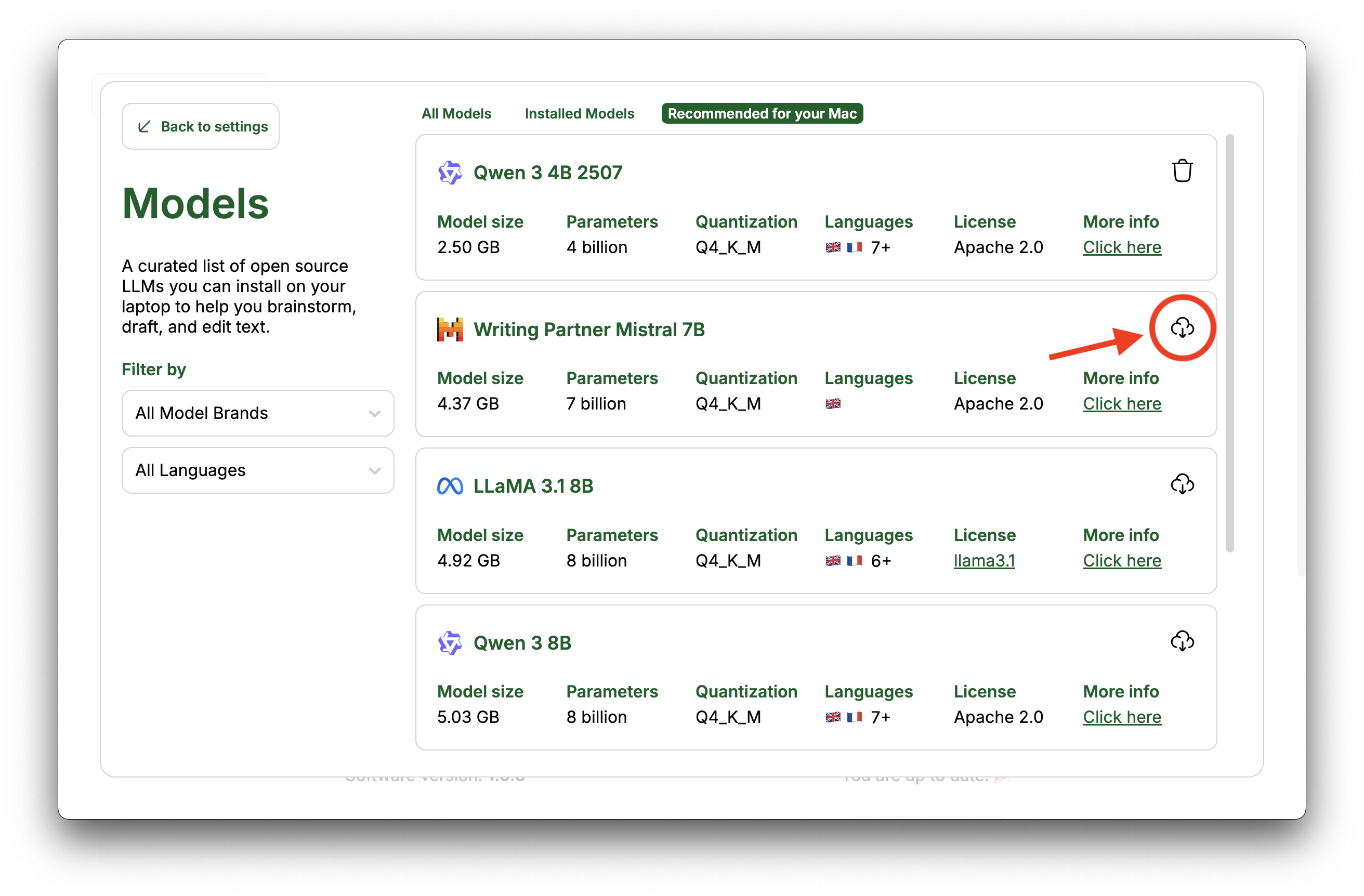
Click on the little cloud icon on the right of the model you want to install and wait for the download to complete without closing the app.
Load a model
When you install your first model, it gets automatically selected as the model to address the requests. But from the second installed model onwards, you need to manually tell Manzoni if you want to use it:
-
Open Manzoni editor
-
Go to Settings ⚙️
-
Click on the dropdown in the AI Models section and select the model you want to use
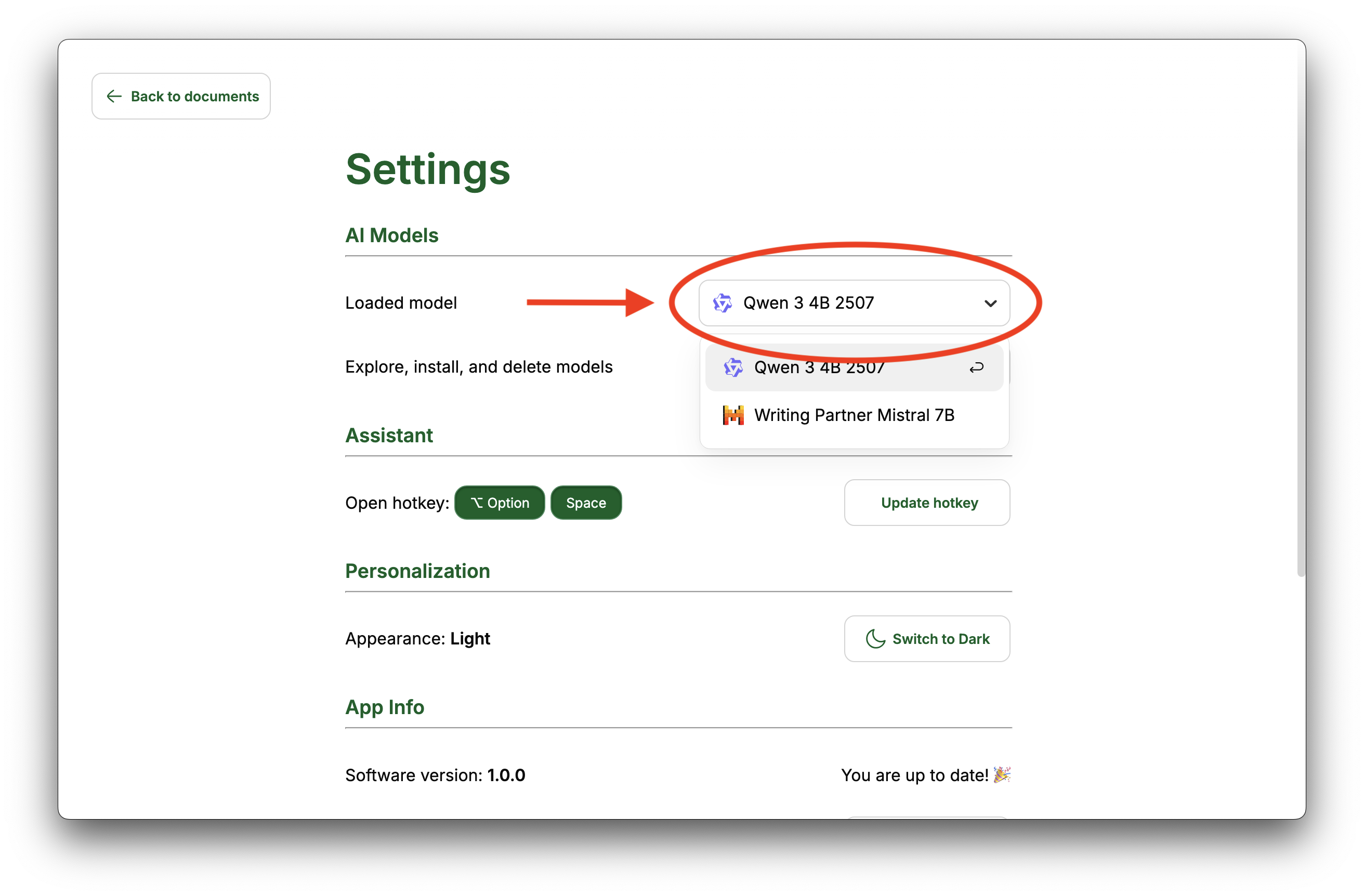
Manzoni will load the selected model whenever it receives a request and unload it right after to free up memory on your laptop.
Delete a model
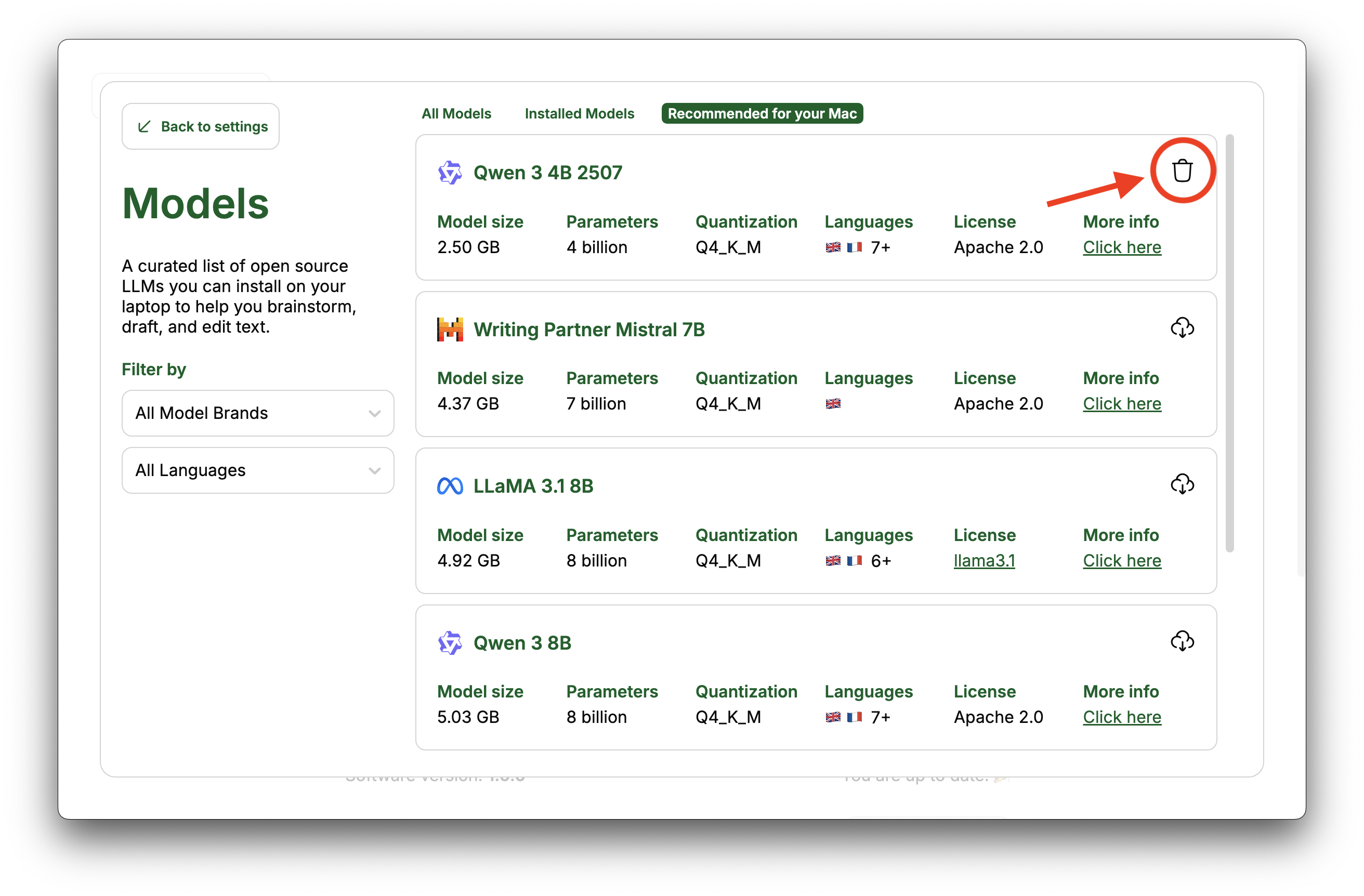
From the same window where you downloaded the model, click on the trash icon on the right model you want to delete and confirm.
-